

SQL Delta Help
Main Screen
SQL Delta uses a single-window tabbed interface. The top tab bar contains the fixed Project Manager tab plus any edit, compare, script, report, or help tabs you open while working.
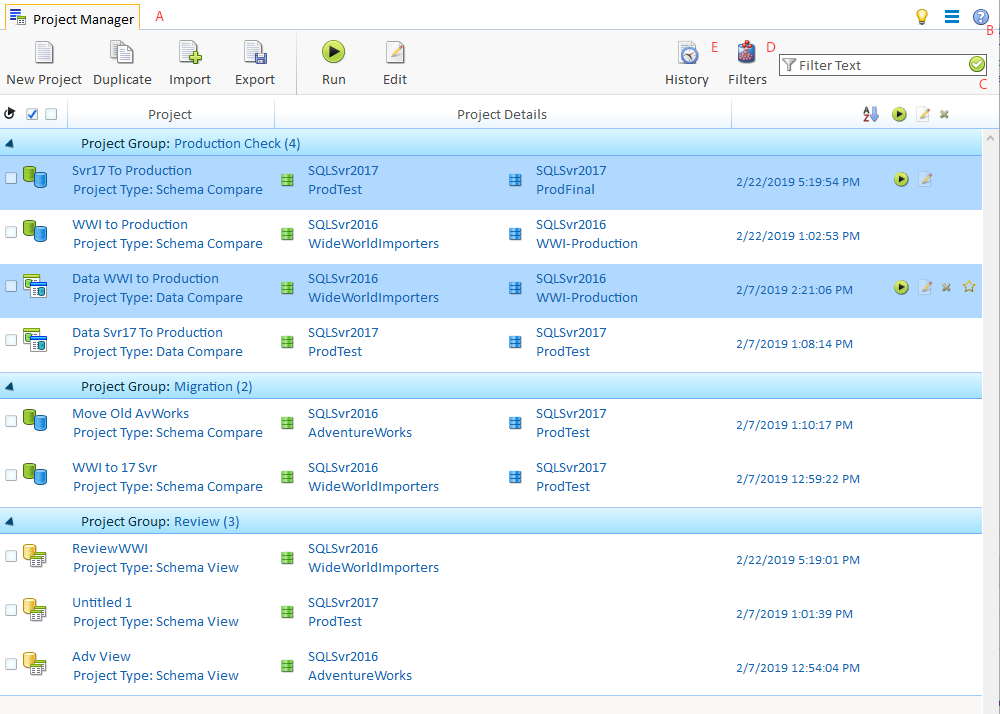
Main window layout
- The first tab is the Project Manager. It stays at tab position zero, can be selected with Alt+0, and cannot be closed like normal project tabs.
- The top-right shell buttons stay available while you work:
- Feedback opens the feedback popup and can include the current screen capture.
- Help opens the help tab.
- Options opens the application menu, which currently includes Preferences, Check for Updates, an Update Now action when a newer build is already available, Deactivate, Release Notes, and About.
Project Manager filters and history
The Project Manager has a filter panel that can be shown or hidden as needed. The current filter area includes:
- Filter from list text to reduce the visible projects.
- Use RegEx when you want the text filter to use Perl-compatible regular expressions. Invalid expressions are rejected.
- Project-type filters for Schema Compare, Data Compare, and Schema View.
- Show Checked to limit the list to checked projects.
- Show in Groups to display project groups.
- A sort selector with the current run-date and name-based sort modes.
The History action now opens a recent-activity panel from the side of the Project Manager rather than just showing a simple static list. SQL Delta updates this history when projects are run and uses it for quick reruns and focus changes.
Working with tabs
Opening a project to edit, run, duplicate, import, script, or report creates or focuses the relevant tab. Help also opens in its own tab. Keyboard shortcuts that are currently wired into the main window include:
- Alt+0 through Alt+9 to jump to numbered tabs.
- Ctrl+Tab and Ctrl+Shift+Tab to move forward and backward through tabs.
- Ctrl+W or Ctrl+F4 to close the selected tab.
- F1 for Help, F10 for the Options menu, and F11 for Feedback.
Normal project tabs can be closed with the tab close button or the keyboard shortcuts above. The Project Manager tab remains open.
Project groups
Project groups are still created and maintained from project details and the Project Manager. When grouping is enabled, the list can also expand or collapse groups as part of the current display settings.
The screenshots on this page are from an older Main Screen layout and should be treated as placeholders until the current Version 7 replacements are captured.
See also: Projects, Project Types, and System Preferences.