

SQL Delta Help
Schema Compare Results
After the source and target schemas load, SQL Delta opens a Schema Compare results tab with the result list in the upper pane and the selected object details in the lower pane.
Header and compare direction
- The header shows the project name together with the current source and target connections.
- The direction button between source and target changes the scripting direction from the default source-to-target deployment to the reverse target-to-source deployment.
- When the direction has been reversed, SQL Delta shows the warning Deploying changes affects Source DB so it is clear that scripting will now update the original source database.
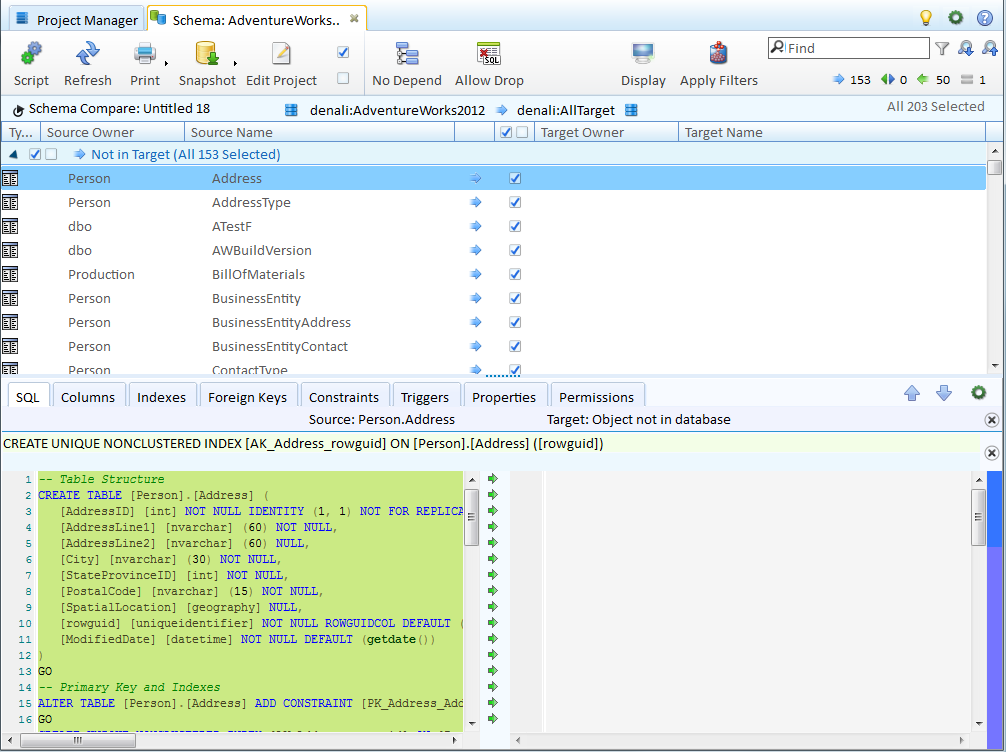
Toolbar and results list
- Script opens a Schema Compare Deployment Script based on the currently selected result rows.
- Refresh reloads the saved project settings, reloads the source and target schemas, and reruns the compare.
- Print opens the report actions used for Schema Compare Reports.
- Snapshot creates a source or target Snapshot from the schemas already loaded into the compare.
- Edit reopens the project in the shared project editor. If you change project settings there, use Refresh or rerun the project before relying on the open results tab.
- Check All and Uncheck All apply to scriptable result rows only.
- Depend keeps dependency handling on so SQL Delta can automatically include required dependent objects for a successful deployment. Turn it off only when you want to script strictly the objects you selected yourself.
- Allow Drop extends dependency handling to dependent drop actions that are otherwise left out by default.
- Log saves the compare log, and Alerts appears when there are load or compare alerts to review.

Filtering and reviewing differences
- Display changes how results are grouped. The current group styles are None, Differences, and Object Type. See Display Options for more on layout and sorting.
- Filter opens the saved compare filters described in Filters.
- The quick Find box filters visible results. The previous and next search buttons step through matches, and the regular-expression toggle enables regex searching.
- The difference counters for Not In Target, Different, Not In Source, and Equal work as quick include or exclude filters for those result types.
- The selection summary reports the current scripting state, such as All Selected, None Selected, or X Selected of Y.
- Selecting a row updates the lower pane so you can review the source and target definitions before generating a script.
Refresh and saved state
The results tab only reflects the schema and project settings that were loaded when the compare ran. Changes made directly in either database or later edits to the project are not shown until you rerun the compare or use Refresh.
The screenshots on this page still reflect an older Schema Compare results layout and should be treated as placeholders until current Version 7 replacements are captured.
See also: Schema Compare Project, Schema Compare Deployment Script, Schema Compare Reports, Display Options, and Filters.