

SQL Delta Help
Data Compare Project
Data Compare projects use the shared New/Edit Project editor to compare rows from a source database with rows from a target database. SQL Delta matches each row by a unique index or compare-column set, usually the primary key, and then reports rows that are only in source, only in target, different, or equal.
Current workflow
- Select Data Compare as the project type. This can also be set as the default project type in System Preferences.
- Complete the source and target details on the Connection tab. Data Compare projects require live database connections and cannot use snapshots as a source or target.
- For a new or duplicated project, choose the current Data Compare style when SQL Delta opens the setup wizard: Adaptive, Semi-Adaptive, or Persistent.
- Use the runtime Table Selection tab to choose tables, configure columns, set the compare index, define filters, and adjust the table-selection settings.
- Review the remaining tabs as needed: Map & Filter, Project Options, and On Completion.
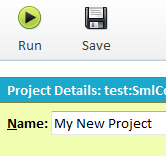
- Optionally set the project name, project group, and Play Sound mode, then choose Run to save and open Data Compare Results, or choose Save if you want to keep the project for later.

Connection details
For the database-specific connection forms, see New/Edit Project - SQL Server, New/Edit Project - MySQL, and New/Edit Project - Oracle. The shared editor behavior is covered in New/Edit Project Overview.
Connection utilities
- Copy copies the current source connection details to the target side.
- Swap exchanges the current source and target connection details.
- Test runs a connection test for the selected side and updates the current connection result. The test buttons are hidden for non-server source types such as snapshots, backups, or folders.
Data Compare mode and Table Selection
- The connection area shows the current Data Compare style and a Change action that reopens the style chooser.
- Adaptive projects automatically compare all matching tables with a primary key and automatically adjust to schema changes.
- Semi-Adaptive projects keep your base selections but can automatically include new tables or columns, depending on the selected settings.
- Persistent projects keep the table, column, and index choices you configure manually until you change them.
- The Table Selection tab provides the current setup commands: Select Tables, Configure Columns, Select Index, Set Filters, Settings, and Reload Schema.
- Select Index defines the unique compare key for each table. The primary key is usually the best default, but you can choose another unique column set if needed.
- Settings controls the current update mode together with options such as automatic schema reload on edit, automatic inclusion of tables or columns, selection of newly included tables, and optional inclusion of views.
- Reload Schema reloads the source and target schema while preserving or recalculating selections according to the current project mode and settings.
Play Sound
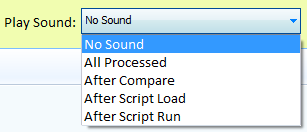
The current project header still includes a Play Sound selector for long-running work. The available choices are No Sound, All Processed, After Compare, After Script Load, and After Script Run.
Running and saving
Running a Data Compare project automatically saves the project first and then opens the compare output in a separate results tab. Saving without running leaves the project ready to be reopened later from the Project Manager. If automatic save on tab close is enabled in System Preferences, closing the edit tab can also save the project automatically.
The screenshots on this page still reflect an older Data Compare project layout and should be treated as placeholders until current Version 7 replacements are captured.
See also: New/Edit Project Overview, Table Selection, Mapping and Filters, On Completion, and Data Compare Results.