

SQL Delta Help
Schema View Results
Schema View results are split into two main display sections: the tree of database objects on the left and the details pane on the right. The exact layout can vary slightly by build, but the core workflow remains to browse objects, inspect generated definitions, run ad-hoc queries, and review live data from the same project tab.
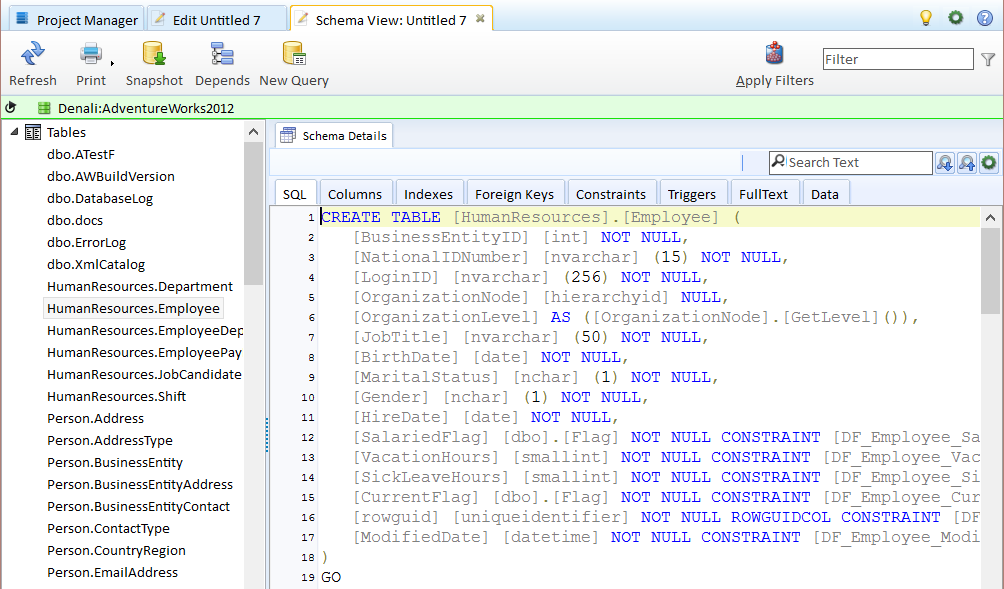
Schema View Actions
|
Refresh |
Refresh reloads the entire schema and redisplays the details. |
|
|
Print a tree view style of schema report |
|
Snapshot |
Generate a snapshot of the current schema. This snapshot can then be used in a schema compare. See Snapshots. |
|
Depends |
Generate a new Depends tab showing both the objects that depend on the current object and the objects that the current object depends on. |
|
New Query |
Create a new query tab to generate your own queries. These queries can be DML or DDL style queries. |
Queries
An important feature of Schema View projects is the ability to execute SQL queries on the server. These queries can return data using a SELECT statement or apply schema or data changes using normal SQL statements, subject to the permissions of the connected login.
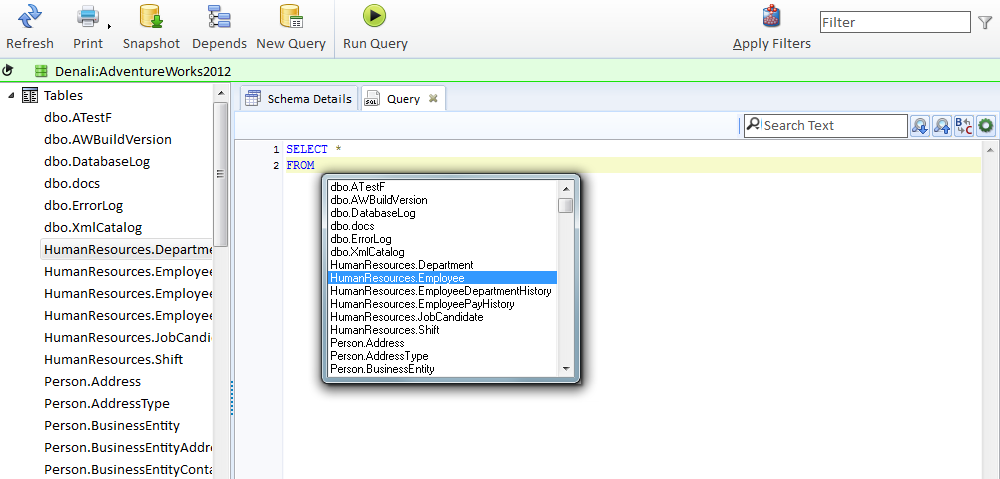
The query is by default executed against the selected server and database.
Multiple query tabs can be opened for the same project. The current Schema View surface also exposes Save Tabs, Load Tabs, and Clear Tabs actions for custom query tabs, and current builds can display multiple result sets rather than limiting the view to only the first grid.
To execute the query either press F6 or the Run Query button. Most of the editor features shown in the Schema Compare Script window also apply to this script window, such as toggling comments or bookmarks.
To display auto complete press Ctrl + Space. Recent release notes also call out additional Schema View keyboard improvements, including navigation refinements and an Alt+- back action in newer builds.
Many query tabs can be created per Schema View project, just click the New Query button or press Ctrl + N. Version 7 release notes also describe a Virtual Editor for very large files that can be saved and then imported into the query tab when normal editor tabs would be impractical.
Data Display
The data tab automatically generates a SELECT statement for tables or views and sends the query to the server. Data is loaded once and must then be refreshed manually. If multiple tables are selected, SQL Delta schedules those loads and populates the data grid as results arrive.
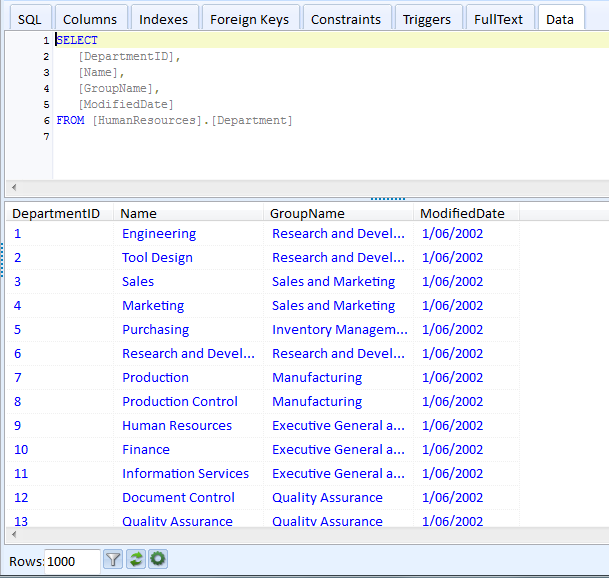
Rows - Number of rows to load, press the Filter button to switch off the row limiter.
Refresh - Reloads the data after the initial load. Switch tabs or from one table to another doesn't reload the data.
Menu - Copy the selected cell or selected row to the clipboard.