SQL Delta Help
Settings
Project settings defines aspects of the data compare project that affect the editing of the project as well as the running of the project.
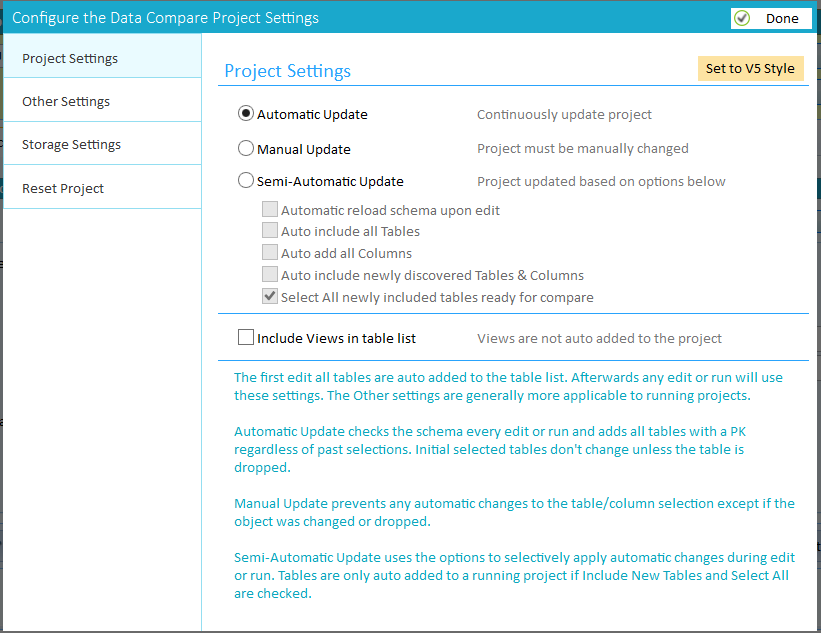
Automatic Update Mode
Whenever the data compare project runs any new tables that have matching table name and a primary key are added to the project along with matching columns and compared along with any previously defined tables. Where possible automatic mode doesn't overwrite the original project settings so filters and column selections and conversions remain.
When editing the project and choosing Table Selection the source/target schema are re-loaded, new tables automatically added and selected ready for compare. Removing a table from compare in Automatic Update mode has no effect since this table will be re-added when the project runs.
Manual Update Mode
This option allows you to configure your project ensuring that SQL Delta does not change the settings, unless a table or column is removed. Initially the tables with a primary key are shown in the table list however they are not selected.
Semi-Automatic Update Mode
The 5 check box options provide a degree of automation to an otherwise manual update mode.
- Automatic reload schema forces the source/target schema to be loaded the first time the Table Selection tab is chosen during an edit session. With this option switched off the schema are only loaded on demand, when selecting a table, column or index. This option also affects the other auto add options since auto add is only applicable when the schema is loaded. This option has no affect to a running project.
- Auto include all Tables automatically adds all available tables to the table list but does not necessarily automatically select them for inclusion in the data compare. This option is applicable to both editing and a running project. The first time a table is added to the project its columns are also added.Even if the table is remove from the project the next run the table if it exists will be re-added.
- Auto add all columns will add any columns to a data compare project however only columns that meet the project options criteria will be added. For example if timestamps are to be ignored then they will not be automatically added. This option affects both running and editing projects. Deleting columns from the project has no effect with this option is active.
- Auto include newly discovered Tables & Columns only adds tables and columns that have been added to the schema since the last project edit. SQ Delta tracks the tables and columns that have been removed from the project and does not re-add these items however will add any new tables or new columns (if they can be added). Combined with Select All (below) any new tables are always compare but existing excluded tables are not compared.
- Select All newly included tables ready for company automatically checks any newly added tables for inclusion in the data compare, if the table has a primary key and columns.
Once a project is saved the existing tables and columns are set and unless the underlying schema changes and those objects are deleted from the schema.
Other Settings
These provide mostly running project settings with Hide Table mapping an edit project setting.
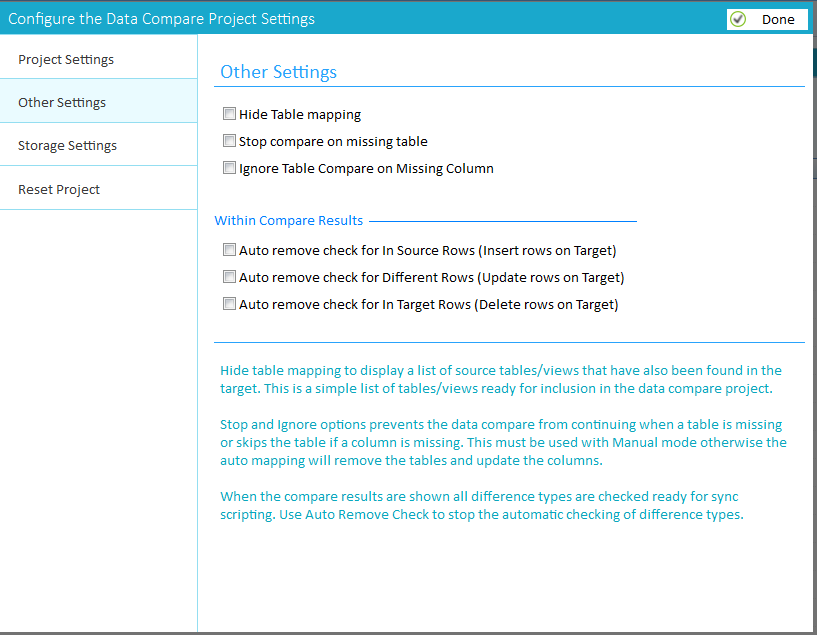
- Hide Table Mapping changes the select tables display to show tables that have matching names in a Owner/Table name format. This style changes the display to simplify the table selection process.
- Stop compare on missing table. Normally data compare will continue even if one or more tables no longer exists in the schema. Check this option to stop the project if a single table is missing.
- Ignore Table Compare on Missing Column. Normally a table will be compared if one or more columns no longer exist in the schema or their data types are completely incompatible. This option when set will remove the table from the compare if a column is no longer available for compare.
Within Compare Results
When the data compare results are displayed all tables and the corresponding update types, In Source, Different and In Target, are automatically checked ready for a sync deployment script to be generated. These three options when active prevent the selected update type from automatic selection.
The most common option is to check Auto remove check for In Target Rows since this will prevent the automatic scripting of row deletes and thus reducing the risk of accidentally deleting data from the target table.
The updates can still be manually selected within the compare results since these options simply change the default.
Storage Settings
These options change the data saving behavior of the data compare project.
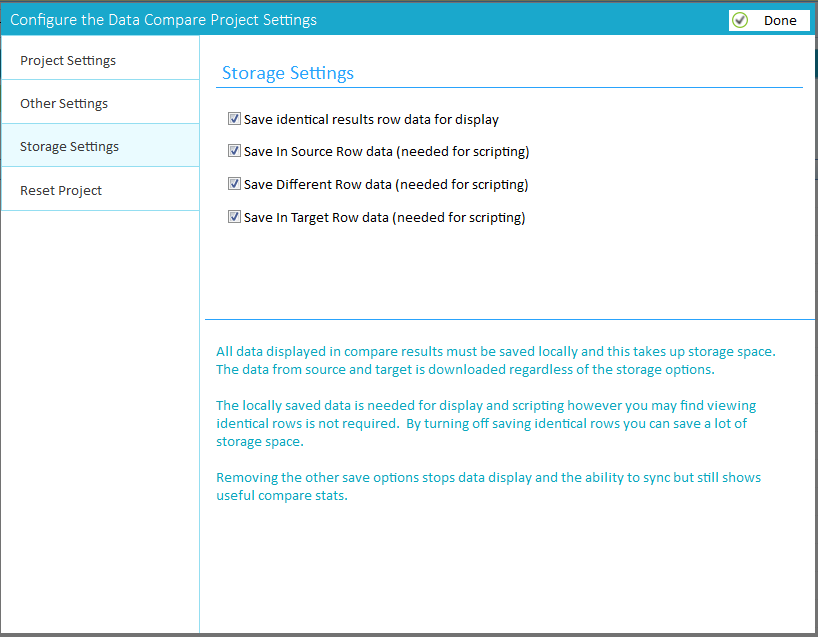
Data compare downloads from the source and target each row of data and compares firstly the sort columns and then the remaining columns. Based on the storage options that data is then saved locally ready for display and ultimately scripting in the case of rows that are different. For tables that contain large volumes of data you may not wish to save the data locally, this is especially relevant to identical data. However equally you may find viewing the difference within the context of the identical data useful in evaluating the differences and even identifying the data to be updated.
Reset Project
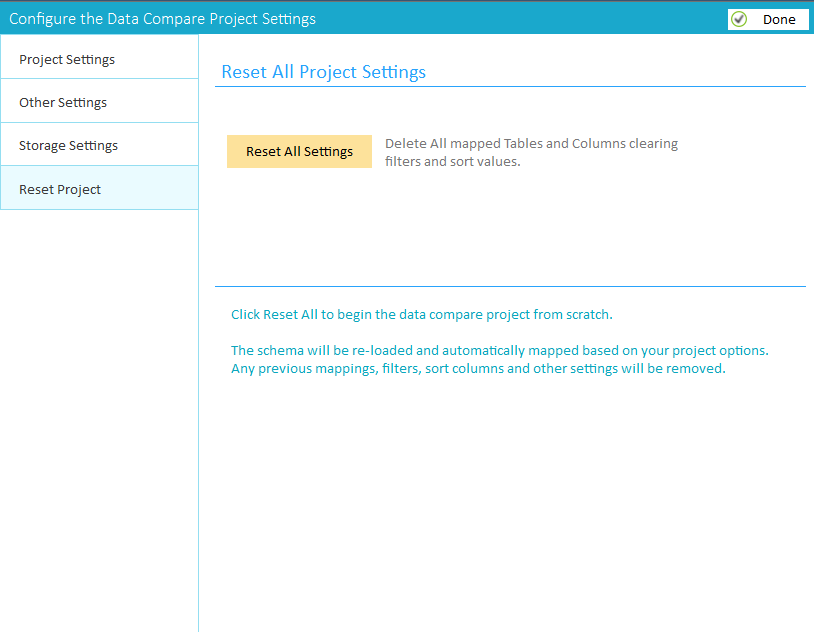
You may wish to remove all the project data, tables, columns and filters. Click Reset All and then Done and the project will be reset back to the initial new project configuration. This doesn't affect the project items such as options, mapping and On Completion events and is useful for return to the state when the Table Selection was first clicked.