

SQL Delta Help
Data Compare Script
Displays the sync script generated from the data compare results and selected tables, ready for review or execution.
Data Compare scripts open from the generated file. You can review and search the script immediately, and SQL Delta enables editing only when you start changing the script. Use Save if you want to persist the edited version before running it.
When the data script is executed it is processed in batches and SQL Delta groups similar actions, such as inserts, updates, or deletes, before sending each batch to the database server.
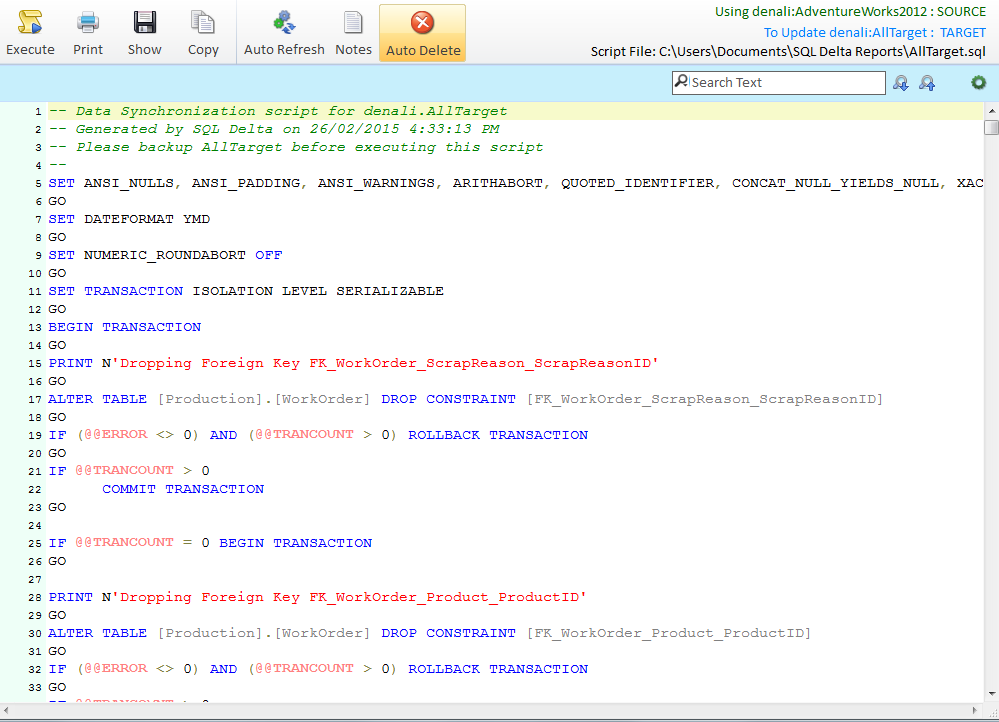
Actions
Execute - runs the script on the target database server (F6).
Print - sends the script to the selected printer.
Save - saves the current script to file.
Show - opens Windows Explorer and selects the script file.
Copy - sends the script to the clipboard. Warning: very large scripts may impact system resources.
Auto Refresh - when closing the script tab after the script has been executed, automatically refresh the compare.
Notes - displays alerts relating to the load or compare.
Auto Delete - when closing the script tab, automatically delete the script file.
Script Display
The script can be searched and reviewed immediately. The search box supports next and previous search, and Search and Replace is available from the toolbar when needed.
Script Editor Actions
|
Copy, Select All |
The same as most read-only editors, text can be selected and copied. |
|
Show Special Chars |
Display paragraph marks, tabs, spaces and other control characters that are normally invisible. |
|
Increase, Decrease, Reset Text Size |
The size of the text can be changed to make larger, smaller or reset to the default. |
|
Toggle Bookmark |
Create a bookmark at a specific point in the script. Up to 10 bookmarks can be created. Repeating the Toggle Bookmark process on an existing bookmark removes the bookmark. Ctrl+Shift+Number is the shortcut. |
|
Goto Bookmark |
Move the cursor to the bookmark, if it exists. Ctrl+Number is the shortcut. |
Executing the Script
Once Execute begins a message panel is shown describing each action as it is sent to the database server. If comments are turned off in Options then a minimal level of feedback will be displayed.
Generally each script item should return a success message indicated by the tick icon; however, from time to time a script error may occur. Errors come from check constraints or other validations where the data does not meet the specific column requirements. If errors do occur and you have transactions active, again see Options, then the changes for that object will be rolled back.
Only Errors - This button filters the messages to display only the errors returned by the database server. Double-clicking an error row changes the script window to display the SQL code that generated the error.
Search Text searches through the messages.
Use the results actions menu to Select All, Copy Selection, save the messages as HTML or text, or enable Auto Locate.