SQL Delta Help
Data Export
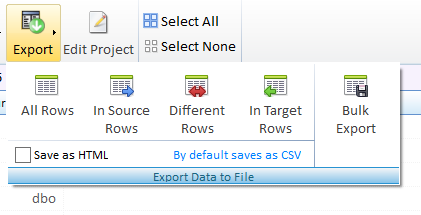
Use this action to export the data for the currently selected table or view as either comma separated values (CSV) or HTML. Bulk Export provides a mechanism to export all data from all selected tables or views, or only the chosen difference types for each selected object.
This function depends on the data saved during the data compare, as configured in the Storage options within Data Compare Settings.
All Rows saves all difference types, including identical rows, to file.
In Source Rows saves only In Source rows to file.
Different Rows saves only Different rows to file.
In Target Rows saves only In Target rows to file.
All Not Equal Rows saves rows that have been added, deleted, or changed.
Use Save as HTML to export as a simple HTML page, Side by Side to use the side-by-side column layout, and Only Checked to export only the checked result rows.
Bulk Export
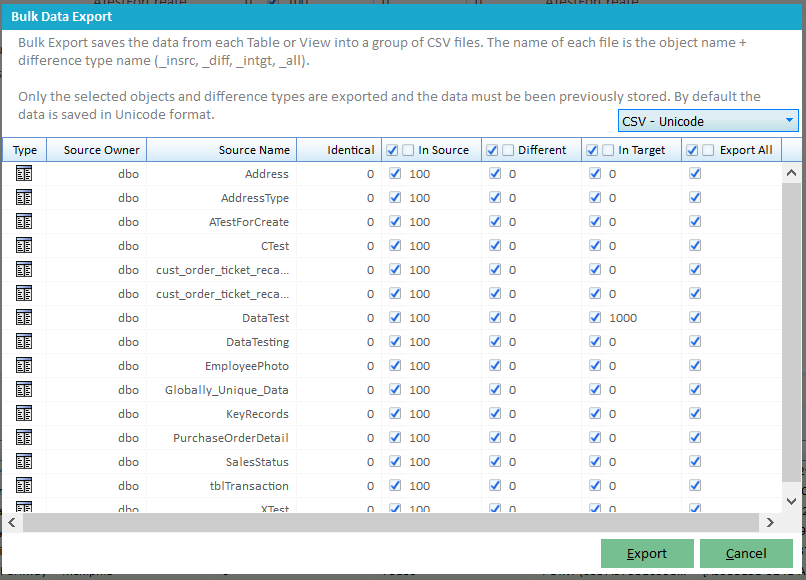
This process exports the selected difference types for each selected table or view to separate files. We suggest creating a new folder when performing a bulk export because the process can generate a large number of files.
Each object can create up to 4 files, although a file is only created when rows exist for that difference type. For example, dbo.Address will not have Different or In Target files if there are no matching rows. The Export All option includes identical rows together with all difference types.
Each file uses the schema or owner, the object name, and the difference type in the filename, for example dbo_Address_InSrc.csv, dbo_Address_Diff.csv, dbo_Address_InTgt.csv, or dbo_Address_All.csv. The extension is .csv or .html depending on the selected output format.
Bulk Export also lets you choose the output format from the CSV or HTML dropdown and apply the Use Side by Side Style option before you click Export.
To proceed, click Export. A folder-selection dialog is shown. Choose the destination folder and click OK to start the export.