

SQL Delta Help
Display Options
There are a number of different display styles for the schema compare results and these can be selected by clicking the Display button.
By default all display changes are automatically saved as part of the project details so when you re-run the project your display configuration is automatically restored to its last setting.
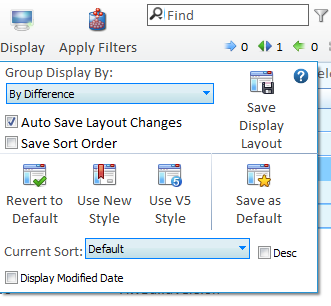
The results can be grouped or left ungrouped and the group is either by Object Type or by Difference type.
- Save display layout will save the current layout. If Auto Save Layout Changes is checked this is not required otherwise you must click Save Display Layout to keep any changes.
- Auto Save Layout Changes, when checked any change to the compare results layout and some script display layout is saved automatically.
- Save Sort Order when checked will automatically save any display sort orders changes and reapply the new sort type every time the project runs.
- Revert to Default restores the compare display to your previously saved default style.
- Use New Style uses the new version 6 style which includes grouping by object.
- Use V5 style revert to ungrouped display in a similar style to version 5 of SQL Delta.
- Save as Default as the current style as your global default.
- Current sort changes the sort of the compare results and the Desc check box sort in descending order.
- Display modified date adds an additional line to the compare results indicating when the object was last modified as reported by SQL Server.
Sorting and Header Positioning

Change the column sort for results by holding down Ctrl and clicking the desired header column. Click again to change from ascending sort to descending sort.
To move a column position just drag the column to the desired location.
Column alignment can be changed by right mouse clicking the column header to set left aligned, center or right aligned.
Object Type Groups
Each type of object is displayed under the group heading and the group can be expanded or contracted. The selection check boxes for the group will select or deselect all unfiltered objects within the group regardless whether the group is expanded or collapsed.
When a filter is applied the number of filtered objects is also shown in the group header as well as the number of difference types.
Difference Groups
Grouping by difference shows all objects that are a specific difference grouped together under the difference type group heading. The selection check boxes for the group will select or deselect all unfiltered objects within the group regardless whether the group is expanded or collapsed.
When a filter is applied the number of filtered objects is also shown in the group header.