

SQL Delta Help
Result Details
When an object is selected from the Schema Compare Results page the details of the object are shown.
The details are shown in a T-SQL script form or for tables in a grid display style and the tabs can be moved to change the order however SQL is always the first tab selected when a project runs.
SQL Display
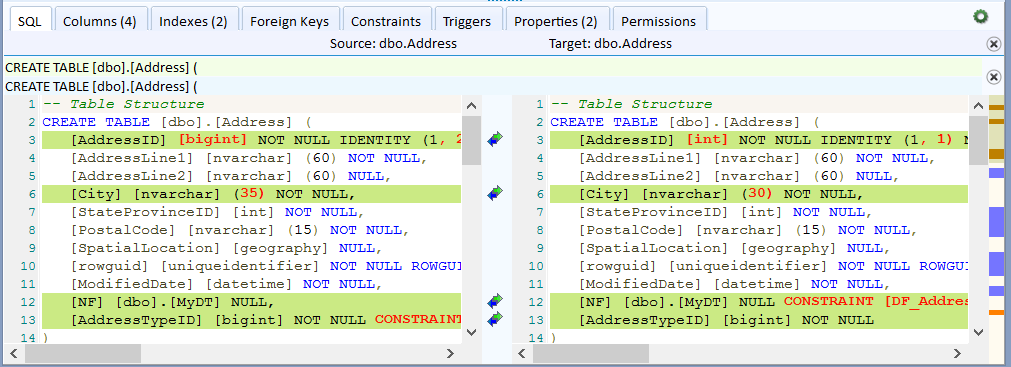
 The menu button provides a range of options for the SQL Display.
Find |
Search within the SQL text |
Show Line Numbers |
Show or Hide the line numbers shown on the left of the SQL text. |
Show Differences Only |
Filter the text to show differences only hiding any equal text |
Show Graphic Overview |
Display/Hide the colored graphic on the far right highlighting the overall differences in the SQL text. Click in the graphic to scroll the that section of text. |
Show Extended Text |
Extend text shows the selected source row and selected target row above the SQL text providing a more fine grained view of the difference text. |
Show Title |
Just below the tabs is the source name and target name and this can be shown or hidden. |
Allow Mouse Extended |
When active moving the mouse over the SQL text will show the row under the mouse cursor in the extended text. |
Increase Font Size |
Increase the font size of the SQL text |
Decrease Font Size |
Decrease the font size of the SQL text. |
Reset Font Size |
Reset to the default text size |
Show Special Characters |
When active the white space, tabs, CRLF and other special characters are displayed otherwise these are normally hidden. |
Grid Display
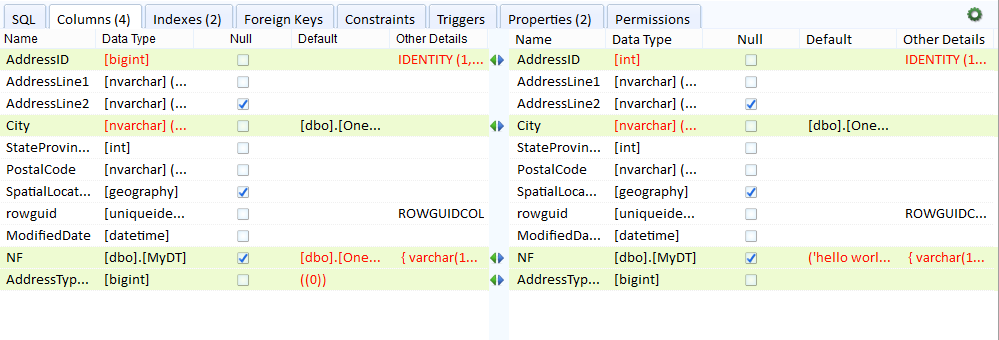
The grid display shows the various differences for each part of a table and the can be especially useful where you wish to view just the specific part of the table.
For other objects types such as Functions, Stored Procedures, Views, etc only the SQL text display is shown.
The  menu button for grid display provides a way of increasing or decreasing the font size or resetting back to the default.