

SQL Delta Help
Schema Compare Results Filters
Filters provide a number of different options for hiding specific types of object within the schema compare results. Filters can also change the object checked state prior to applying the filter and after applying the filter.
For example the Pre-Filter action could de-check all objects and then the filter is applied and the select filter action checks the objects. The result is a custom group of objects that have been selected ready for scripting. This filter can be persisted so each time the project runs the filter is reapplied providing the same custom group each time.
Filters can be added together joined using AND or OR for each distinct filter. To apply the filter just click away from the filter box of press F4.
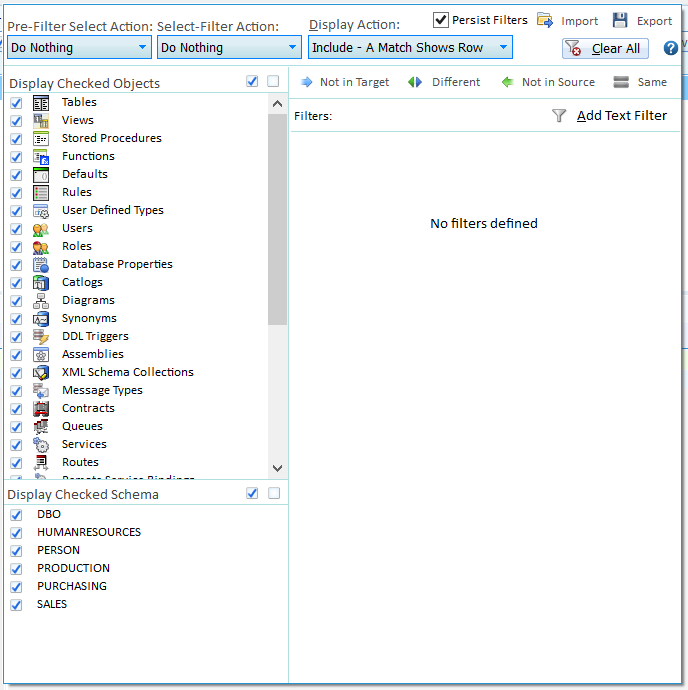
Pre-Filter Select Action
The options are Do Nothing, Check All Objects or De-Check All Objects.
This action will apply one of these options to the entire schema compare result set prior to applying any filters. Selecting Check All Objects is the same as the default action when a compare project runs.
To force all objects to be unchecked every time the compare is complete set the pre-filter action to De-Check All Objects and ensure Persist Filters is checked.
Select Filter Action
The options are Do Nothing, Check All Objects or De-Check All Objects.
This action will apply one of these options to the filtered schema compare result set.
Display Action
This action determines whether the filter will exclude and hide all compare results that match the filter, include and show all results that match the filter (and hiding everything else). For Selection doesn't filter but combined with the Select-Filter Action can check or de-check all objects that match the filter while continuing to display all objects.
Example
Set the Pre-filter to De-Check All Objects and set the Select-Filter to Check All Objects and the Display Action to For Selection. Then add a new text filter "view" and accept the filter. The result is all objects that contain the text "view" in their name will be checked and all other objects are left unchecked. The schema compare results are not filtered.
Object Filters
Object filters are locked system filters that cannot be altered except by checking or de-checking one or more objects from the object type list. Object filters are always an exclusion filter regardless of whether the Display action is Include or Exclude. If the Display action is For Selection then as with all other filters this simply applies a selection.
Schema Filters
Like Object Filters, Schema Filters are a locked system filter and filter objects of de-checked schema name. Schema filters are always an exclusion filter regardless of whether the Display action is Include or Exclude. If the Display action is For Selection then as with all other filters this simply applies a selection.
Difference Type Filters
Like Object Filters and Schema Filters these too are a locked system filter and filter objects of a specific difference type. Difference filters are always an exclusion filter regardless of whether the Display action is Include or Exclude. If the Display action is For Selection then as with all other filters this simply applies a selection.
Text Filters
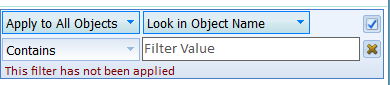
Text filters can be applied to a vast range of objects in various ways. Importantly the text filter is not automatically applied and the tick button must be clicked or enter pressed to accept and apply the text filter. A warning is displayed if the text filter has not been applied.
Apply To: This allows the text filter to be applied to a specific object type, such as a table or view.
Look In: This determines what part of the object to evaluate for the filter. The options are:
Object Type (Table, View, etc), Object Name where this is both object name and schema name if one exists, Name is the object name only, Schema is the schema (or Owner) only, Everything will also load the object SQL contents and search within the contents, Compare Result is the difference type.
Compare: Determines how the text is compared with the Look In value and the options are:
Contains - a match to any partial text, Starts With - a match where the text equals the start, Ends With - a match where the text equals the end, Equals - the text must be completely equal,
Not Contains, Not Starts With, Not Ends With and not Equals - the inverse of the above,
RegEx accept regular expressions,
In List uses a comma separated list of text and checks to see of the Look In value is within the list,
Not In List is the inverse of In List.
Click the cross button to delete the filter.